Entra ID — admin setup walkthrough
Step-by-step for an administrator who has to get Microsoft Entra ID sign-in working on a muvee deployment. Everything on the muvee side happens in the web UI — no SSH, no redeploy, no environment variables.
For the reference material behind these steps (tenant semantics, token validation, which claims muvee reads) see Microsoft Entra ID.
What you need before you start
| In Azure | permission to create an app registration in your tenant (Application Developer role or higher) |
| In muvee | an admin account on the platform (Admin → Settings must be visible to you) |
| Decide | which planes you want: the muvee panel login, the project subdomains, or both |
Step 1 — Register the app in Azure
- Azure portal → Microsoft Entra ID → App registrations → New registration.
- Name: anything recognisable, e.g.
muvee. - Supported account types: for a company deployment pick Accounts in this organizational directory only (single tenant). This is the safest option — muvee then rejects any token whose tenant differs from the one you configure.
- Redirect URI: platform Web, and paste the platform callback (see step 3 for the exact
value; you can also add it afterwards):
https://<your-muvee-domain>/auth/entra/callback - Register, then copy from the Overview page:
- Application (client) ID
- Directory (tenant) ID
Add the second redirect URI (needed for project sign-in)
Still in the app registration → Authentication → Web → Add URI:
https://<your-muvee-domain>/_oauth/entra
That one serves the login pages on project subdomains. If you serve muvee under several base domains
(BASE_DOMAINS), add both URIs for each domain — muvee returns the user to whichever domain
they started on.
Create a client secret
Certificates & secrets → Client secrets → New client secret. Choose an expiry, then copy the secret Value immediately (the portal hides it once you leave the page). Note the expiry date — sign-in stops working the day it lapses.
Avatars come from a Microsoft Graph call, which uses the delegated User.Read permission that new app registrations already have under API permissions. If your tenant has removed it, or requires admin consent you cannot get, leave it alone and untick the avatar option in step 3 instead.
Step 2 — Open muvee's admin settings
Sign in to muvee as an admin → Admin → Settings → scroll to Social Login Providers (downstream sign-in) → the Microsoft Entra ID card.
Step 3 — Fill in the card
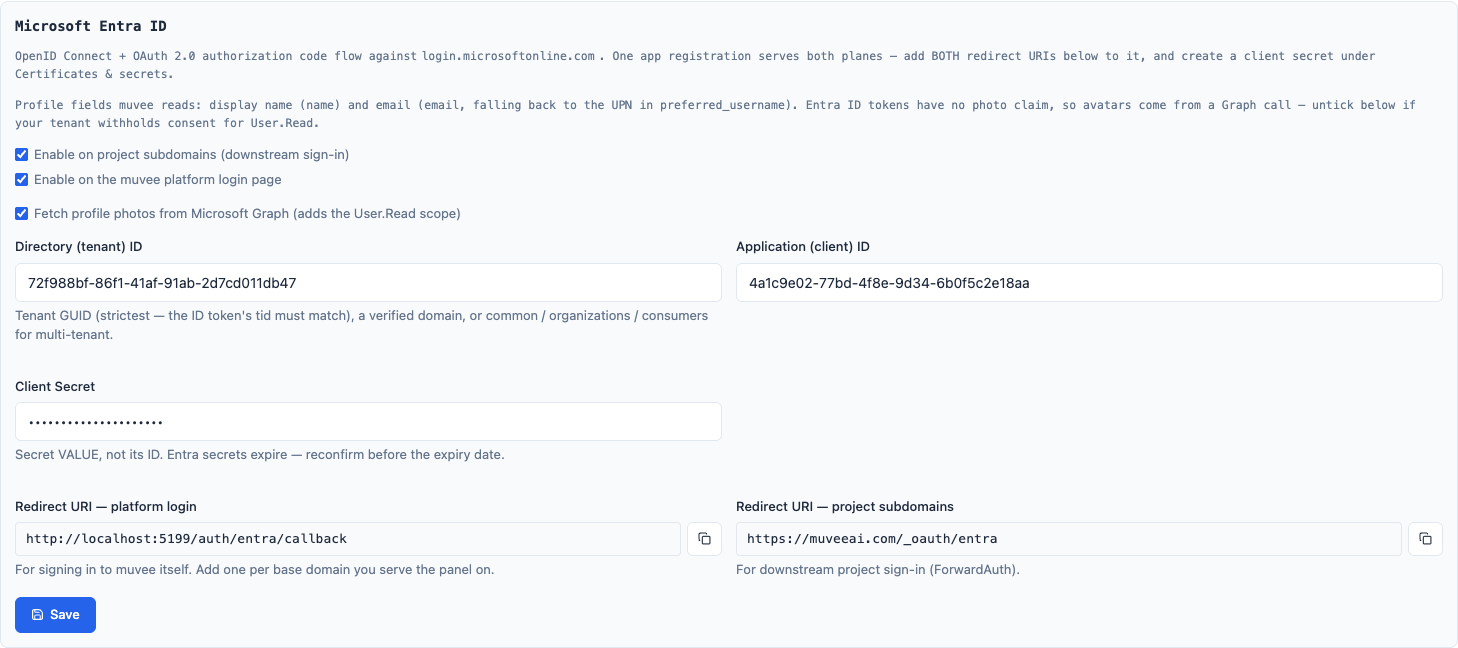
The two redirect URIs are read-only and have a copy button. The platform one always shows the domain
you are currently browsing muvee on — in the screenshot that is a local dev server; on your
deployment it will read https://<your-muvee-domain>/auth/entra/callback.
| Control | What to put in it |
|---|---|
| Enable on project subdomains | tick to offer Microsoft on project (ForwardAuth) login pages |
| Enable on the muvee platform login page | tick to offer it for signing in to muvee itself |
| Fetch profile photos from Microsoft Graph | leave ticked for avatars; untick if User.Read consent is unavailable |
| Directory (tenant) ID | the tenant GUID from step 1 |
| Application (client) ID | the client ID from step 1 |
| Client Secret | the secret value from step 1 |
| Redirect URI — platform login | read-only; copy into Azure |
| Redirect URI — project subdomains | read-only; copy into Azure |
Press Save. Both planes pick the change up immediately — muvee reloads the platform provider set in-process and pushes the new config to muvee-authservice, so no restart is involved.
Step 4 — Verify
Platform login: open muvee's login page in a private window. A Continue with Microsoft button must be there:
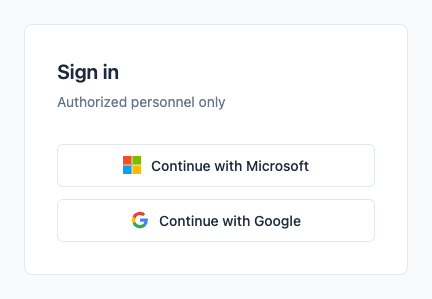
Sign in with an account from the tenant. Afterwards check Admin → Users — the account should be listed with its display name and email, and with its Entra profile photo when avatars are on.
Project login: open a project subdomain that has auth enabled. If its Auth → Sign-in providers list is empty the project offers everything configured, including Microsoft; if it is a restricted list, tick Microsoft there and save.
Step 5 — Decide who gets in
Enabling the provider decides how people sign in, not who is allowed. The admission rules are unchanged:
| Setting | Effect |
|---|---|
| Access mode (Admin → Settings) | open / invite / request — governs new platform members |
ADMIN_EMAILS | which addresses become platform admins |
ALLOWED_DOMAINS | email-domain whitelist. Skipped for a single-tenant Entra config, because directory membership is already the gate. Enforced when the tenant is common / organizations / consumers |
| Project Auth tab | per-project allowed domains and access list for downstream users |
With tenant common or organizations, anyone in the world with a Microsoft work account can reach
your login page. Set ALLOWED_DOMAINS, or switch access mode to invite, before you enable it.
If something goes wrong
| Symptom | Cause and fix |
|---|---|
AADSTS50011 redirect-URI mismatch | The URI in Azure differs from muvee's. Copy it from the card rather than typing it; it must match exactly, including scheme and path. |
| No Microsoft button after saving | Credentials incomplete (a blank tenant, client ID or secret registers nothing), or the tenant value is malformed. Check muvee-server's log for entra provider. For a project page, also check the project's sign-in provider list. |
id_token was issued by tenant …, not the configured … | The app registration is multi-tenant while the tenant field pins one GUID. Use the issuing tenant's GUID, or switch the field to organizations. |
| Login worked, then stopped for everyone | The client secret expired. Create a new one in Azure and paste the new value. |
| Users appear without a photo | Normal when the user never uploaded one (Graph answers 404). If nobody has a photo, User.Read consent is likely missing — the log line is entra: fetch avatar. Login is unaffected either way. |
| Sign-in fails at the Microsoft consent screen | The Graph scope needs consent your tenant withholds. Untick the profile-photo option; muvee then requests only openid profile email. |